Installing Templates
Besides writing your own templates, you can install a ready-made one from a link (a .zip file or a GitHub
repository, branch or folder) or from a .zip file on your computer. The template is added to your project's .CodeBaker/ folder, so it is
committed and shared with your team like any other file.
New to CodeBaker? The plugin ships with sample templates: see the Quick start instead. Only public links can be installed. To make a template that others can install, see Sharing Your Own Template, and to know what an installed template can do, see Security.
Install from a link
- In the Project view, right-click any folder.
- Choose New → Generate from Template → Install Template from URL…
- Paste the link and click Install.
You can also run CodeBaker: Install Template from URL from Find Action.
Above the template of each example on this site there is a Download the template (.zip) link and a Copy link button. Paste that link here and the example is installed, ready to generate.
The template is installed into your project's .CodeBaker/ folder, which is created if it does not exist yet.
It does not matter which folder you right-clicked.
The template appears under New → Generate from Template, with its version next to the name if it has one.
Install from a file
If you already have the template as a .zip file (a download, an email attachment, a file from a colleague):
- In the Project view, right-click any folder.
- Choose New → Generate from Template → Install Template from File…
- Pick the
.zipfile.
It works like a link install: the same checks on the archive, the same folder naming and the same prompt if a
template with that name is already installed (see Where it is installed). The .zip
file itself is not changed or removed. You can also run CodeBaker: Install Template from File from Find Action.
The archive rules in Which links work apply to a file too: it must contain a
codebaker.config.json5, and the limits are the same.
Install with one click from a web page
Pages that offer a template can show an Install in IDE button. It opens your IDE and fills in the install dialog, with a notice that the install was requested by a link on a web page. Nothing is installed until you confirm, so check that the address is the one you expect.
- You need the CodeBaker plugin and an open project.
- These links must use
https://(plainhttp://is accepted only forlocalhost). - If the button does nothing (for example with an IDE that is not listed), use Copy link and paste it as in the steps above.
Which links work
| Link | What is installed |
|---|---|
https://example.com/templates/crud-1.0.0.zip | the template inside that archive |
https://github.com/owner/repo | the repository's default branch (it must contain one template) |
https://github.com/owner/repo/tree/v1.2.0 | that branch or tag |
https://github.com/owner/repo/tree/main/templates/crud | just that folder, which is how to pick one template from a repository that has several |
https://github.com/owner/repo/blob/main/templates/crud/codebaker.config.json5 | the folder that holds that config file |
About the link itself
- A link without a scheme (
example.com/crud.zip) is treated ashttps://. - Links with an embedded
user:password@, links containing spaces, and schemes other thanhttp://andhttps://are refused. - Only
.ziparchives are supported. Not supported:.tar.gz, GitLab or Bitbucket page links (a direct.zipdownload link from those sites does work) and SSH orgit@addresses. - Only public links can be installed: a link that anyone can open without signing in.
About the archive
- It must contain a
codebaker.config.json5. The shallowest one is used, so the template can sit at the top level, inside one wrapping folder (as GitHub archives are), or deeper: a repository that keeps its template under.CodeBaker/<name>/installs fine. The search goes up to 4 folder levels down. - If several templates sit at the same depth, installation stops with an error: link to one template's folder.
Limits
These limits protect you from oversized or malicious archives:
| Limit | Value |
|---|---|
| Download size | 50 MB |
| Unpacked size | 200 MB |
| Files in the archive | 10,000 |
| Redirects followed | 5 |
| Config search depth | 4 folder levels |
Where it is installed
The folder name comes from the template's id (or its name, or the archive's file name if there is neither).
See id for the exact rules and how names are cleaned up. The
template's version, if it has one, is shown next to its name
in the menu.
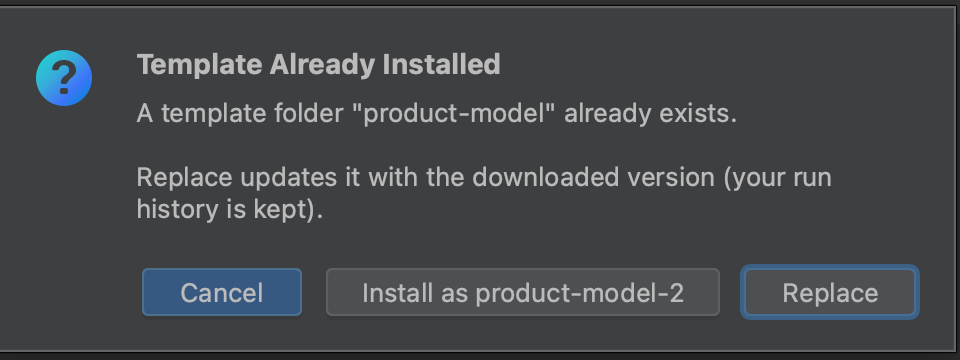
CodeBaker keeps one installed version per template id. If a template with that folder name is already installed, you choose:
- Replace: swap the installed folder for the downloaded (or selected) one. The prompt shows both versions (newer, older or
the same). Anything you changed inside that template's folder is replaced; only your run history in its
.historyfolder is kept. - Install as
<suggested name>: keep both, under a free name such ascrud-2. This is how you keep two versions side by side. - Cancel.
Nothing is changed until the download has been checked, and a failed install leaves your existing templates as they were.
Scripts stay executable. If the zip was made on macOS or Linux (with zip, or by GitHub's Download ZIP), a file that was executable in it is executable in the installed folder, and a new file generated from it is executable too (see Step 4). Only the executable bit is taken from the archive. A zip made on Windows has no such bit: set it on the files in .CodeBaker/<template> yourself.
Removing a template
A template is an ordinary folder in your project's .CodeBaker/ folder, so to remove it, delete that folder: in the Project view (right-click the folder, then Delete), or with git rm -r .CodeBaker/<folder> in a Git project. The menu is rebuilt each time it opens, so the template is gone from New → Generate from Template right away, with no restart.
- The history goes with it. The template's
.historyfolder, with your run history and the values you typed, is inside the folder. Copy it somewhere first if you want to keep it. A template that is installed again after a deletion starts with an empty history, while Replace (see above) keeps it. - Your team gets the change too. In a Git project the deletion is a normal change: when others pull it, the template disappears for them as well.
- Files that were already generated stay. Removing a template does not delete anything it has written into your project.
Troubleshooting
| Message | What to do |
|---|---|
| "Only http:// and https:// links are supported." | Use a web link. file:, ssh: and git@ addresses are not accepted. |
| "The link returned a web page, not a .zip file" | Use a direct link to the archive, or a GitHub repository / folder link. |
| "The downloaded file is not a .zip archive." | Only .zip is supported. Re-create the archive as a zip. |
| "The archive is damaged or not a valid .zip file" | Download it again, or re-create the archive. |
| "Access denied (HTTP 401)" or "(HTTP 403)" | The file is not public. Use a link that anyone can open. |
| "Nothing found at this link (HTTP 404)" | Check the address, branch and folder. The file or repository must be public. |
| "The server is rate-limiting requests (HTTP 429)" | Wait a while and try again. |
| "The file is larger than the allowed 50 MB." (or "The archive expands to more than 200 MB", "too many files") | The template is over the limits. Install a smaller one, or link to a folder inside it. |
| "The archive contains a file name that Windows cannot create" (on Windows only) | A file or folder in the template has a name Windows does not allow, such as a:b.txt, what?.txt or CON. Ask the author to rename it, or rename it in the archive. |
| "This is not a CodeBaker template" | The archive has no codebaker.config.json5 within 4 folder levels. |
| "The archive … does not exist" (from a file) | The file was moved or deleted after you picked it. Pick it again. |
| "The archive contains several templates" | Link to one template's folder, for example .../tree/main/templates/crud. |
| The button does nothing | Open a project first, then try again, or use Copy link. |
More
- Sharing Your Own Template: make a template others can install.
- Security: what an installed template can and cannot do.