Step 1: Generation Properties
Right-click a folder in the Project view and choose New → Generate from Template → your template. The wizard opens on step 1, titled CodeBaker: Generation Properties. Here you fill in the values the template needs.
The buttons are Cancel and Next >>. The ? icon at the bottom left opens this page in your browser. ESC does nothing in the wizard, so use Cancel to close it.
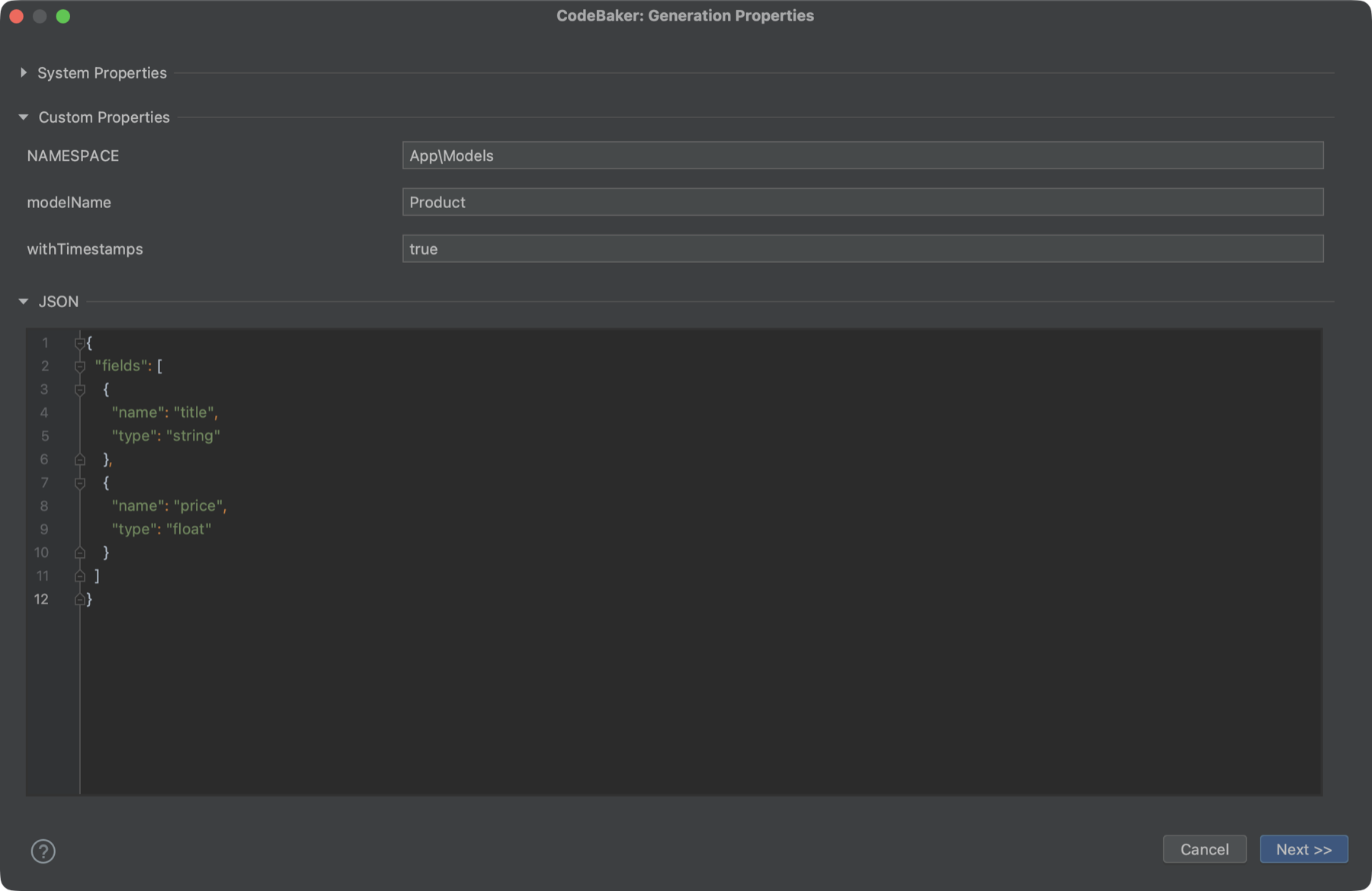
What the form contains
The form is built from the template's codebaker.config.json5:
| Section | Content |
|---|---|
| Select from history | Only shown once the template has been used (see below). |
| System Properties | Collapsed until you open it. Values CodeBaker fills in for you, such as DATE, TIME, USER, PROJECT_NAME, DIR_SLASH and, in an IDE with PHP support, NAMESPACE. This is only some of them: see the full list with sample values. |
| Custom Properties | One text field per entry in the template's vars. In an IDE with PHP support a NAMESPACE field is added first unless the template defines its own. |
| JSON | An editor for the template's json section, with syntax highlighting and code folding. |
Every vars entry whose value is a string, a boolean or a number becomes a field, and every field is a plain text field (a true is shown as the text true). Arrays and objects written directly in vars do not appear in the form. Put structured data such as lists in the json section instead.
Open System Properties and the values CodeBaker fills in for you are there, one field each, with today's values:
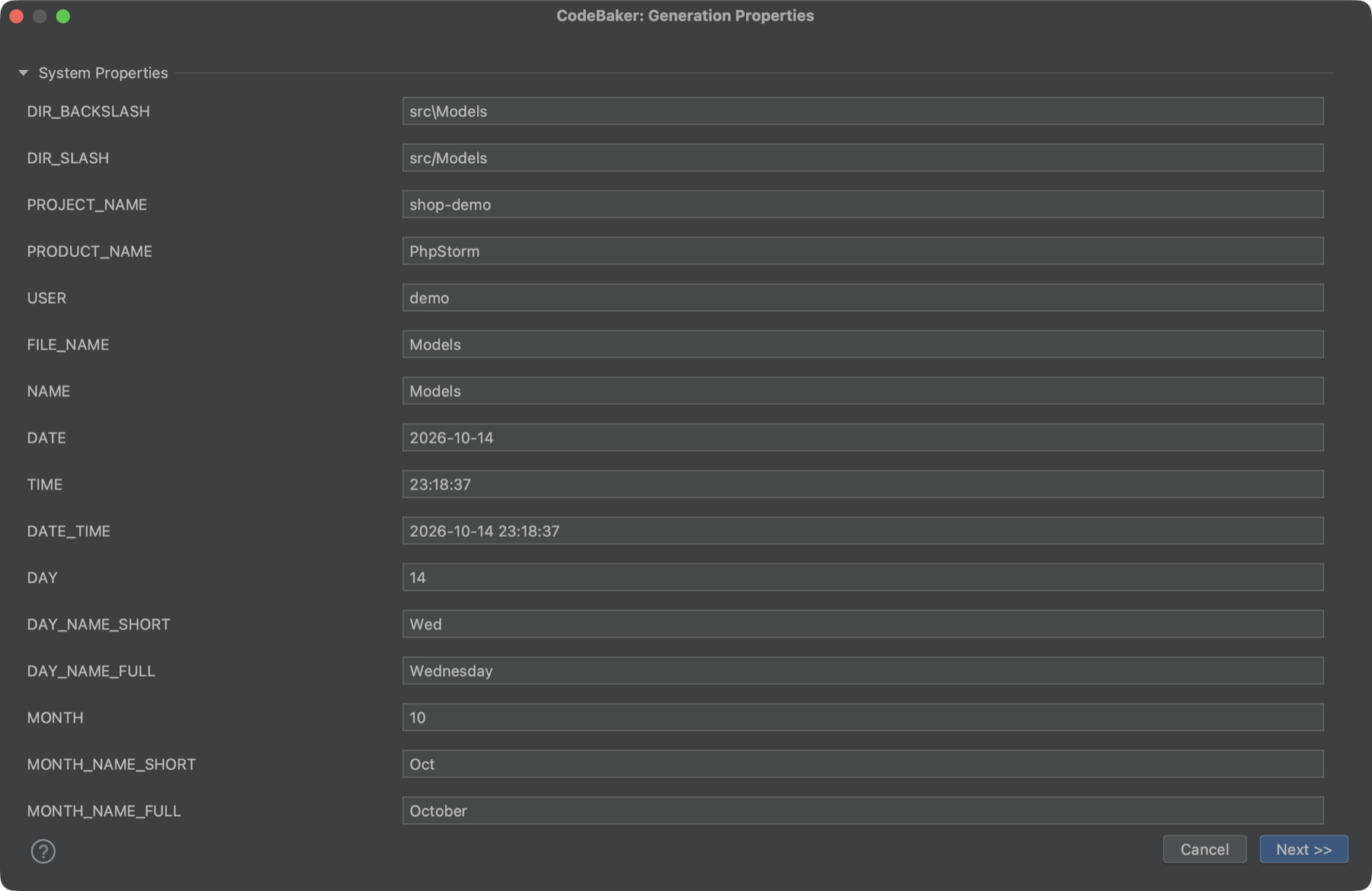
Values can contain expressions
A value may refer to properties above it using Pebble expressions, for example:
vars: {
  name: "BlogPost",
  tableName: "{{ name | tableize }}",
}
These are not evaluated while you type. They are resolved top to bottom when you click Next, and you can see the result in step 2. A property can only use properties listed before it. See Inflection Filters for the available filters.
After resolution, a value that is exactly true or false, or a plain number, becomes a boolean or number inside the template. Anything else stays a string.
The only validation is JSON syntax
CodeBaker does not check required fields, formats or types in the property fields. If the JSON editor contains invalid JSON, a red message such as Invalid JSON: <message> appears under it and Next >> stays disabled until you fix it.
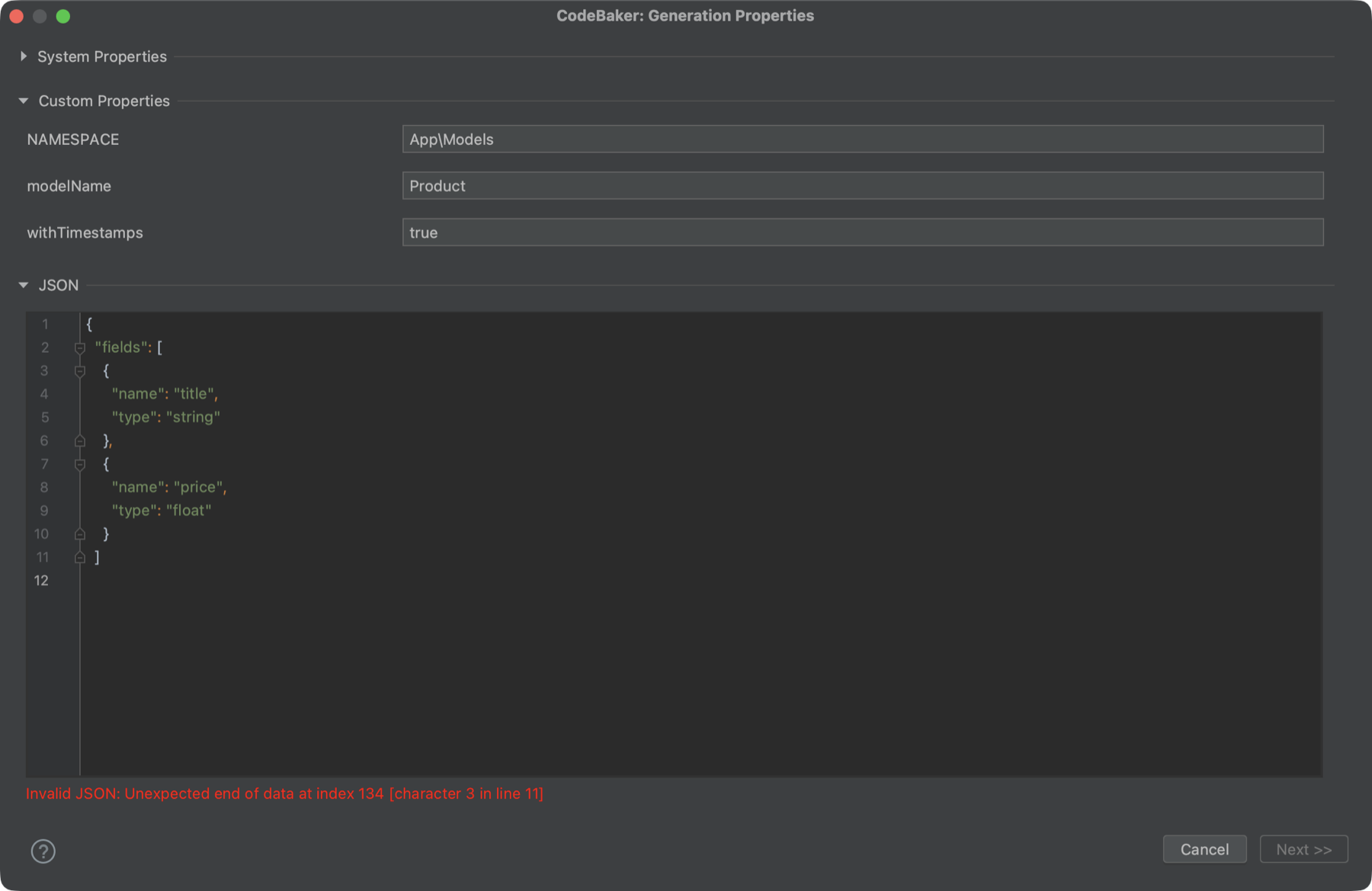
History
After your first generation with a template, a Select from history: bar appears above the form.
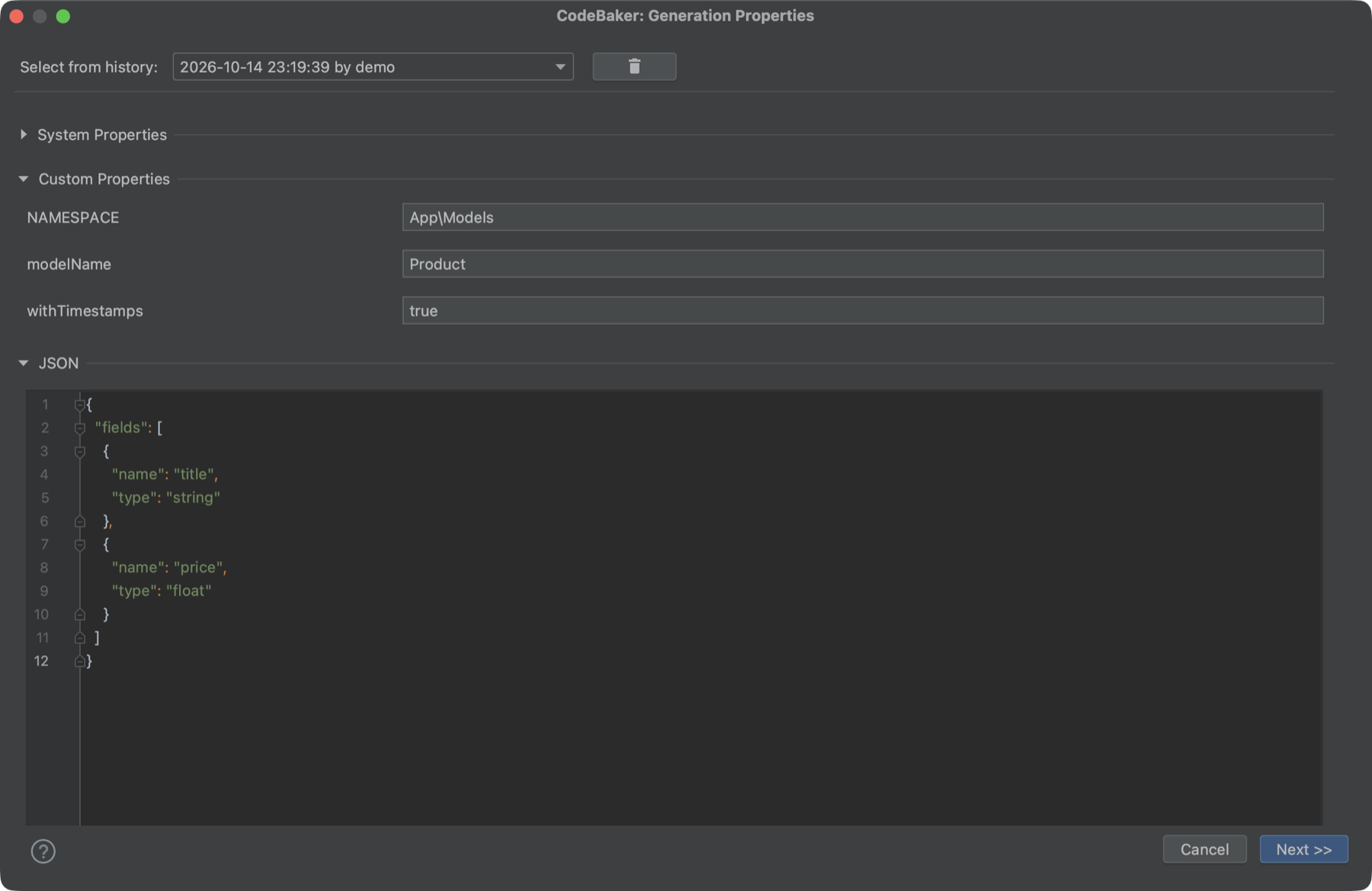
- Entries are listed newest first, as
yyyy-MM-dd HH:mm:ss by user, followed by(template X)when the template declares a version. - The newest entry is selected when the dialog opens, so the form starts with your last values.
- The empty option at the top clears the custom fields and the JSON editor.
- System properties are never restored from history; they show current values.
- The trash button asks "Are you sure you want to clear all Generation Properties history?" before deleting.
- An entry is saved when you click Next. Each template keeps its last 20 entries in a
.historyfolder inside the template folder.
Tips
History lives inside the template folder (.CodeBaker/<template>/.history). If the template is committed to Git, decide whether to commit or ignore that folder.
- Click Next >> to run the pipeline. If you come back with << Back and click Next >> again, it runs again with your new values.
Next step
Click Next >> to continue to Step 2: Pre-Generation.