Step 2: Pre-Generation
Clicking Next >> on step 1 opens CodeBaker: Pre-Generation. CodeBaker resolves your values, works out which files the template will produce and compares them with what is already on disk. Nothing is written to your project in this step.
The buttons are Cancel, << Back and Next >>. Next >> stays disabled while processing runs, and it is enabled only when processing finishes without an error.
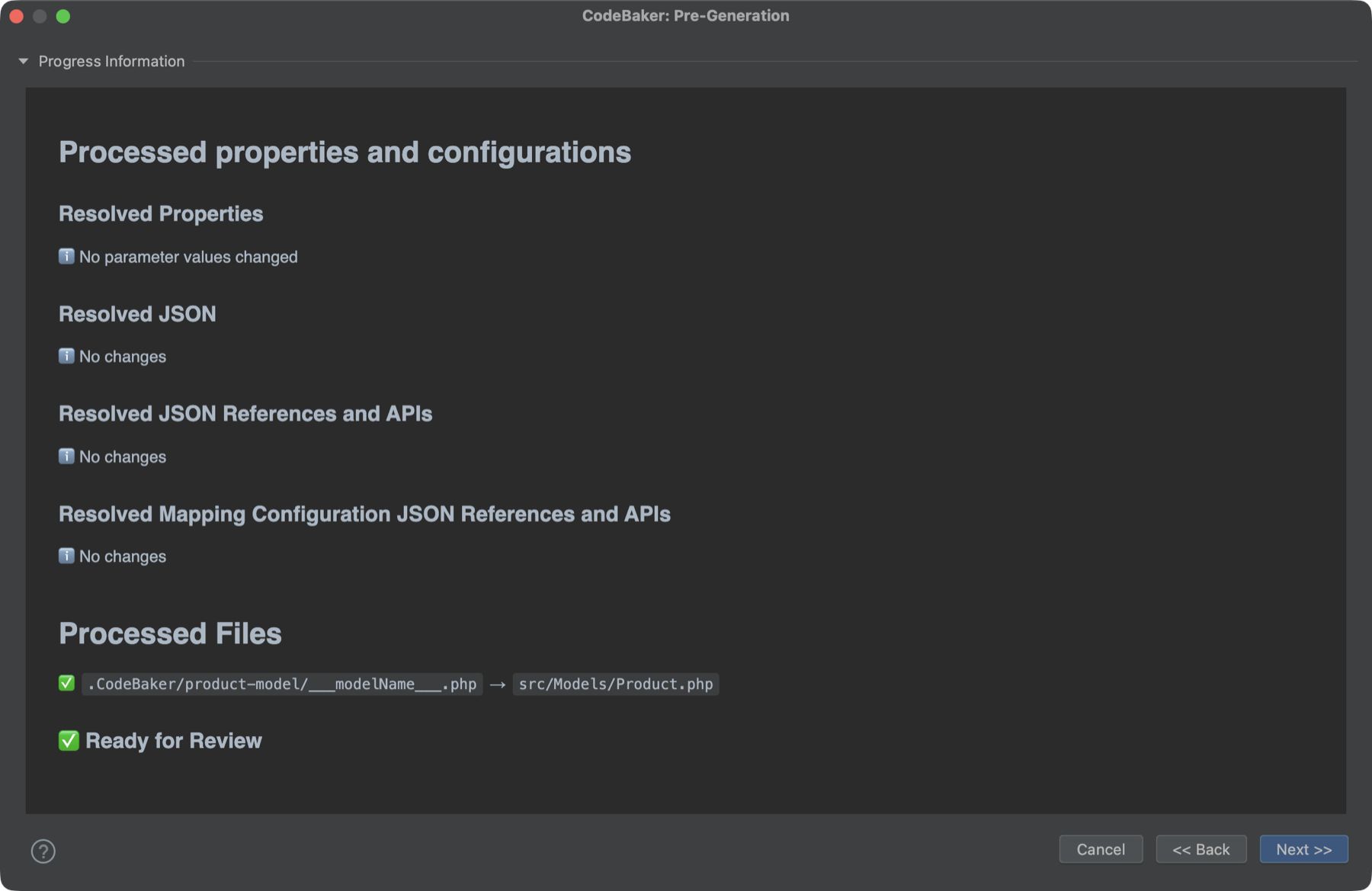
The Progress Information panel
The step has one collapsible panel, Progress Information, with a log that fills in live. It has no search, filter or export.
These are the headings you will see, in order:
| Heading | What it covers |
|---|---|
Processing properties and configurations (becomes Processed ...) | The umbrella for the three resolving blocks below. |
Resolving Properties (becomes Resolved Properties) | Your fields, resolved top to bottom. |
Resolving JSON | The JSON editor content, with expressions evaluated. |
Resolving JSON References and APIs | $ref and $api entries inside that JSON. See Advanced Templates. |
Resolving Mapping Configuration JSON and its References and APIs | The template's mapping file (codebaker.advanced.json5), when it has one. |
Processing Files (becomes Processed Files) | One line per file the template produces. |
Ready for Review | Marks the end of the step. |
Properties
While properties are being resolved, a status line shows Resolving KEY... for the one being worked on, and then it is cleared. A line is added only for values that changed:
✅ KEY: `old value` → `new value`
If none of your values changed, you see ℹ️ No parameter values changed. That is normal when your values contain no expressions.
JSON
If the JSON editor was empty you see ℹ️ No JSON provided. If evaluating expressions or $ref/$api entries changed the JSON, the resulting JSON is shown in a code block. Otherwise you see ℹ️ No changes.
Files
Each file gets a line of the form:
✅ `source path in the template` → `target path in your project` - New
The ending is New, Modified or Unchanged, colored like the file tree in step 3: green, blue, or the default color.
| Status | Meaning |
|---|---|
| New | The target file does not exist yet. |
| Modified | The target exists and its content would change. |
| Unchanged | The target exists and the generated content is identical. |
When something fails
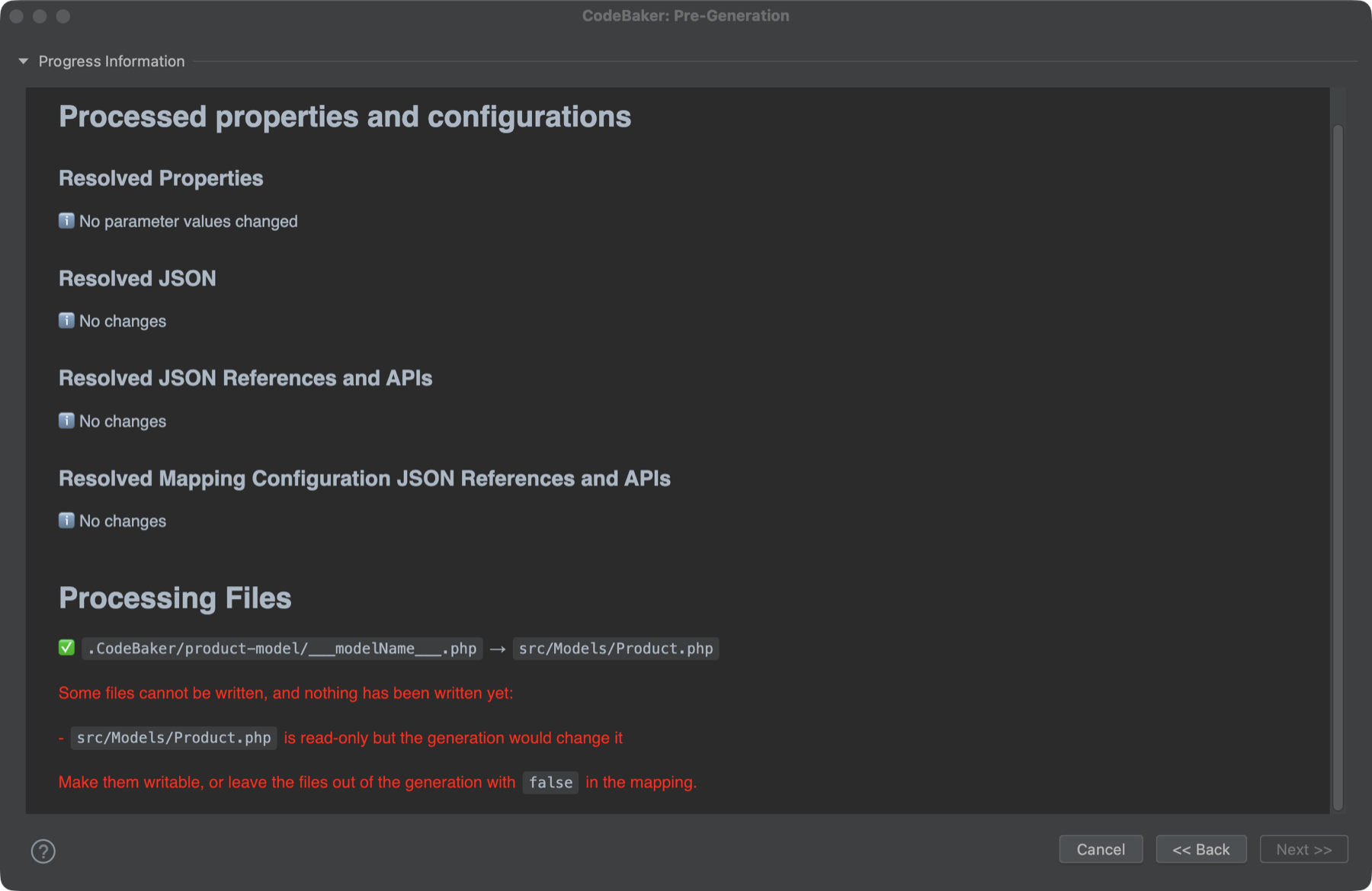
An error appears in the log as red text, and Next >> stays disabled. One example is JSON that is no longer valid after expressions have been evaluated. Another is a target that step 4 could not write: a folder that is not writable (a file or folder has to be created, or a file replaced, in it), or an existing read-only file that the generation would change. All of them are listed at once, and nothing has been written. Make them writable, or leave those files out with false in the mapping. A read-only file whose content would stay the same is not a problem. Click << Back, fix the value and click Next >> again. Each pass re-runs the whole step.
Here an existing file is read-only and the generation would change it, so step 2 lists it, says nothing has been written, and keeps Next >> disabled:
Next step
When Ready for Review appears, click Next >> to continue to Step 3: Code Preview.