Step 4: Code Generation
Clicking Finish on step 3 (and Continue, if you were asked to confirm overwriting) opens CodeBaker: Code Generation. This is the only step that changes your project.
The buttons are Cancel, << Back and Done. Done is disabled until generation finishes. When it does, the Cancel buttons disappear and every earlier step gets a Done button too, so you can close the wizard from any of them.
What happens
CodeBaker writes all files from the step 3 preview, including any edits you made there, in one IDE write command. The command is named after the template, for example "My Template" Generation. CodeBaker does not reformat the generated code, so what you saw in the preview is what lands in the files.
A file that already exists and whose content changes is written into, not replaced by a new one. It keeps its permissions (a script stays executable), its owner, and a symbolic link stays a link, with the file behind it getting the new content. A file whose content stays the same is not touched at all. A new file gets the executable bits of the template file it comes from, so a script in the template is a script in the result (keep the bit in your template folder, Git does). Only those bits are copied, so a read-only template file does not give a read-only result.
The Progress Information panel shows the log, and when everything is written it looks like this:
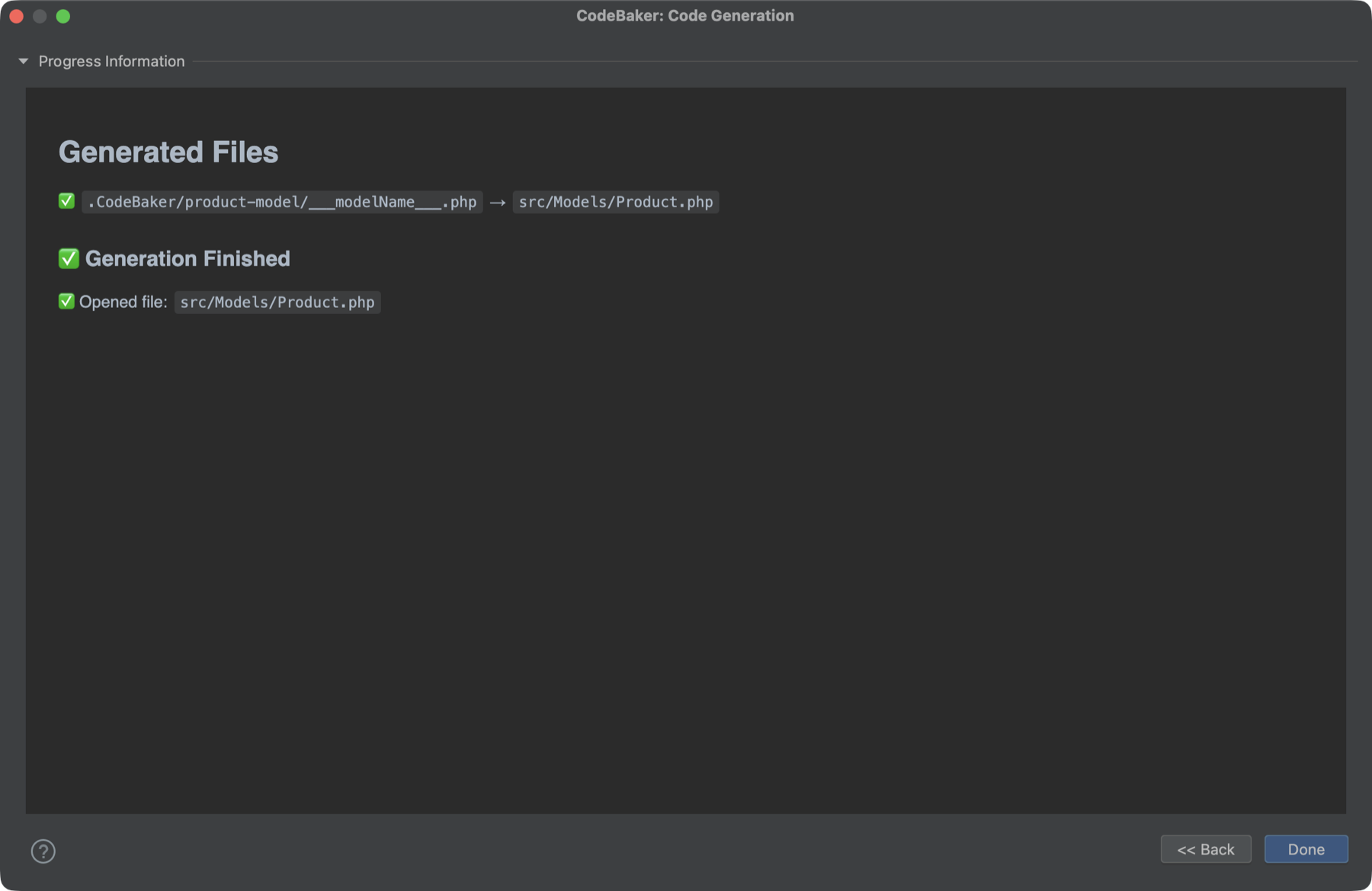
The entries are:
| Entry | Meaning |
|---|---|
Generating Files (becomes Generated Files) | The write has started, then completed. |
✅ source → target - status | One line per file, with the same New, Modified or Unchanged ending as in step 2. |
✅ Generation Finished | All files are written. |
✅ Expanded folder: path | A folder from the template's expand list was revealed in the Project view. |
✅ Opened file: path | A file from the template's open list was opened in an editor. |
The last two groups appear only if the template defines expand and open in codebaker.config.json5 (see the Configuration Reference). Files are opened only when they are listed in open. They open in the listed order, and the last one is brought to the front and selected in the Project view.
If something goes wrong
- A file that cannot be written is reported in the log as red text.
- If writing fails (for example a folder or file that cannot be written), an Error dialog appears with the message
Failed to generate template: <message>. The files written before the error stay in the project: use Edit → Undo to revert them.
Undo
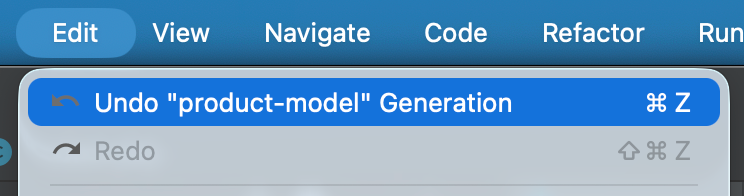
The whole generation is one undoable command. Use Edit → Undo in the IDE to revert it, from wherever the focus is; the IDE may ask you to confirm the undo of the command named after the template. It puts changed text files back, and removes the files and folders the generation created. A file that is not text (an image, for example) can be written but not undone this way, so use Git for those. Because it is a normal IDE action, you can also use your usual tools, such as Git, to inspect or discard the result.
Closing the wizard
Click Done. Once a day at most, a short "Success!" dialog may appear when the wizard closes, with a link to support the project. You can close it and carry on.
Running the same template again from the context menu opens step 1 with your previous values already filled in from history, so repeating a generation with one changed value takes a few clicks.
Where next
- Write your own templates: Template Basics.
- Update part of an existing file, write a file only once, or generate one file per list item: Advanced Templates.